
WooCommerce Conversion Tracking: A Setup Checklist for Meta and Google Ads
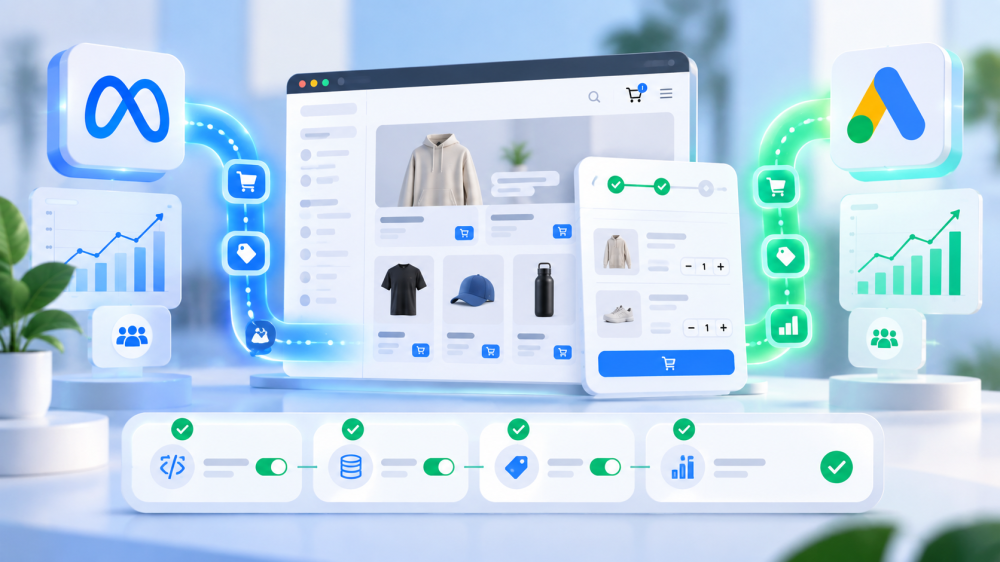
A WooCommerce integration for ad tracking has more places to break than a Shopify one, because WooCommerce is WordPress plus a plugin running on whatever hosting, caching, and theme the store happens to have assembled.
The Meta pixel that works on one WooCommerce store fails silently on the next because a caching plugin served a stale thank-you page.
This is a setup checklist built for that reality: the prerequisites that have to be true before any platform plugin will work, then Meta, then Google Ads, then the checks that prove it.
It is written for the store as it exists in September 2026, including an open bug in the official Meta plugin.
Why does WooCommerce conversion tracking break more than Shopify’s?
WooCommerce conversion tracking breaks more often because every layer of the stack is a separate choice, and each one can interfere with the order-received page where purchase events fire.
Hosting, caching, minification, the theme, the checkout type (classic or block), the payment gateway’s redirect behavior, and the tracking plugin itself are all independent, and none of them know about each other.
Shopify controls the whole stack, so a tracking integration has a small, stable surface. WooCommerce gives you freedom and a larger surface to defend.
We covered the why in an earlier post; this one is the how.
Before you start: three things every platform depends on
- Exclude the WooCommerce pages from caching. This is the single most common cause of missing conversions on WooCommerce. Caching plugins serve pre-rendered HTML, and a cached order-received page fires no purchase event, or fires a stale one. WooCommerce requires /cart/, /checkout/, /my-account/, and /order-received/ excluded from all page caching, plus the woocommerce_cart_hash, woocommerce_items_in_cart, and wp_woocommerce_session cookies excluded from cache rules, as Seresa’s caching breakdown documents. WP Rocket, LiteSpeed Cache, and W3 Total Cache each have a place to do this. Also exclude tracking scripts from JavaScript minification, which can corrupt them.
- Run exactly one tracking plugin per platform. WooCommerce stores accumulate plugins. A Meta pixel from the official plugin, another from a theme setting, and a third from a general-purpose pixel plugin will each fire Purchase. Audit Plugins, then audit the theme’s header, then audit any tag manager container. One source per platform, and delete the rest.
- Turn on WooCommerce’s built-in Order Attribution. It is off by default. Under WooCommerce, then Settings, then Advanced, then Features, enable Order Attribution. It records the referring URL, UTM parameters, and device on each order using session cookies with a 30-minute lifetime, under a last-click rule, per WooCommerce’s documentation. It is not a substitute for ad platform tracking, but it is the order-level record that lets you check the platforms against something. Note that some web application firewalls block the sbjs cookies it uses; the docs offer a base64 workaround.

Meta conversion tracking on WooCommerce
Meta tracking on WooCommerce runs through the official Meta for WooCommerce plugin, which installs the pixel and can send Conversions API events server-side from order data. Five checks:
- Install Meta for WooCommerce and connect through the plugin’s setup flow. Business Manager, ad account, pixel (now a Dataset in Meta’s interface), and catalog if you run catalog ads.
- Confirm server-side events are on. The plugin sends CAPI events from the server when configured. In Meta Events Manager, a test order should show a browser Purchase and a server Purchase merged into one deduplicated event.
- Check the duplicate-Purchase bug. As of September 18, 2026, there is an open issue on the official plugin where revisiting an order-received page fires a second Purchase event despite the order being flagged as already tracked. It inflates purchase counts in Ads Manager. Until it is fixed, verify by revisiting a test order’s confirmation URL and watching Test Events. If a second Purchase appears, either update when a fix ships or move purchase firing to a server-side integration that keys on order ID.
- Verify Event Match Quality after 48 hours. Purchase above 8 means the server events carry hashed email and phone from the order. If it sits at 6 or 7, the plugin is sending browser identifiers only; check its advanced matching settings.
- Verify event_id matches on both sides. Browser and server Purchase must share an event ID, ideally the WooCommerce order number, or Meta counts both.
Google Ads conversion tracking on WooCommerce
Google recommends the Google for WooCommerce plugin for Google Ads (AW-) tags and the Google Analytics for WooCommerce plugin for GA4 (G-) tags, per Google’s WooCommerce tag setup guidance. Four checks:
- Install Google for WooCommerce and complete the guided connection. WordPress account, Google account, Merchant Center, Ads account. It creates the Google tag and a purchase conversion action.
- Enable enhanced conversions after setup. Google’s docs note additional features are accessible once the plugin is connected. Enhanced conversions attach hashed email, phone, and address from the order so Google can match purchases without a cookie. Confirm in Google Ads under Goals, then Conversions, then Diagnostics, where the rating should read Good.
- One primary Purchase action. If a previous setup created a manual conversion action, demote it. Two primary Purchase actions means Google counts twice.
- Consent mode wired to your banner. WordPress consent plugins vary in whether they pass Consent Mode v2 signals. After the June 15 change, Consent Mode is the sole gate for Google Ads data flowing through GA4, so a banner that never updates ad_storage silently blacks out signals. Check the gcs parameter in DevTools.
Verification: the checks that prove it works
- One test order, both Events Managers. Exactly one Purchase per platform, deduplicated, with value, currency, and product IDs, and customer identifiers on the server copy.
- Revisit the confirmation page. No second Purchase should fire. This catches the Meta plugin bug and any theme-level double fire.
- Clear cache, place another test order. If the first order tracked and the second did not, caching is serving the order-received page. Go back to the prerequisites.
- Seven-day received-events check. Compare WooCommerce paid orders to each platform’s received Purchase count. Below orders is a delivery problem. Above orders is a duplication problem.
- Order Attribution populated. Open recent orders in WooCommerce admin. The Origin field should show a source and UTMs for ad-driven orders. “Unknown” on most orders means the feature is off, a WAF is blocking cookies, or ads carry no UTMs.
Put the seven-day check on a monthly calendar. WordPress core, WooCommerce, the theme, and every plugin update on their own schedules, and any one can regress the order-received page. WooCommerce 10.9 changed the store surface again this summer.
What this setup gives you, and what it doesn’t
Done properly, this gets Meta and Google the most complete view of your WooCommerce conversions the plugins can provide, with server-side events surviving the caching and blocking that kill browser pixels.
That is what a good ecommerce integration with the ad platforms looks like on WordPress. It does not give you an independent number.
- Each platform still applies its own attribution window,
- credits itself for orders the other also claims,
- and reports a Purchase count you cannot audit outside its own interface.
And on WooCommerce specifically, the built-in Order Attribution is last-click within a 30-minute session, which is a useful check and a narrow lens.
A first-party, click-only attribution layer sits outside all of that.
It captures the click ID and UTMs when the shopper lands, on your own domain, independent of the caching plugin. It follows the session.
- It joins the WooCommerce order to the click that started it, from order data, so it nets refunds and skips renewals because your orders do.
- It won’t credit views or engagement, and it undercounts some upper-funnel influence.
- What it gives you is one order, one click, one record, and it is the same record whether the store is on WooCommerce, Shopify, or moving between them.
WooCommerce conversion tracking, like most ecommerce tracking, is mostly a matter of clearing the path to the order-received page and then proving, with a test order, that both platforms saw it once.
Cache exclusions, one plugin per platform, Order Attribution on, CAPI verified, the revisit test. Then keep a record of your own.
If you want to see your WooCommerce orders next to a click-only, first-party attribution record on your own store, book a live AdBeacon demo.
—-
FAQ
Why is my WooCommerce conversion tracking not working?
The most common cause is a caching plugin serving a static order-received page so the purchase event never fires. Exclude /cart/, /checkout/, /my-account/, and /order-received/ from caching, exclude WooCommerce session cookies from cache rules, and keep tracking scripts out of minification.
Does the Meta for WooCommerce plugin support the Conversions API?
Yes, it can send server-side events from order data alongside the browser pixel. Verify with a test order in Meta Events Manager that browser and server Purchase events deduplicate into one, and check the open duplicate-Purchase issue on revisiting the confirmation page.
Is WooCommerce Order Attribution on by default?
No. Enable it under WooCommerce, Settings, Advanced, Features. It records referrer, UTMs, and device per order using 30-minute session cookies under a last-click rule.
Which plugin does Google recommend for Google Ads tracking on WooCommerce?
Google for WooCommerce for the Google Ads (AW-) tag and Google Analytics for WooCommerce for the GA4 (G-) tag. Enhanced conversions are enabled after the initial connection and verified in Google Ads Diagnostics.
How do I check for duplicate purchase events on WooCommerce?
Place a test order, then revisit its order-received URL and watch Events Manager. A second Purchase means a plugin, theme snippet, or the confirmation page is double firing. Also compare received events to paid orders over seven days; above orders means duplication.